Everything on this page takes about three minutes.
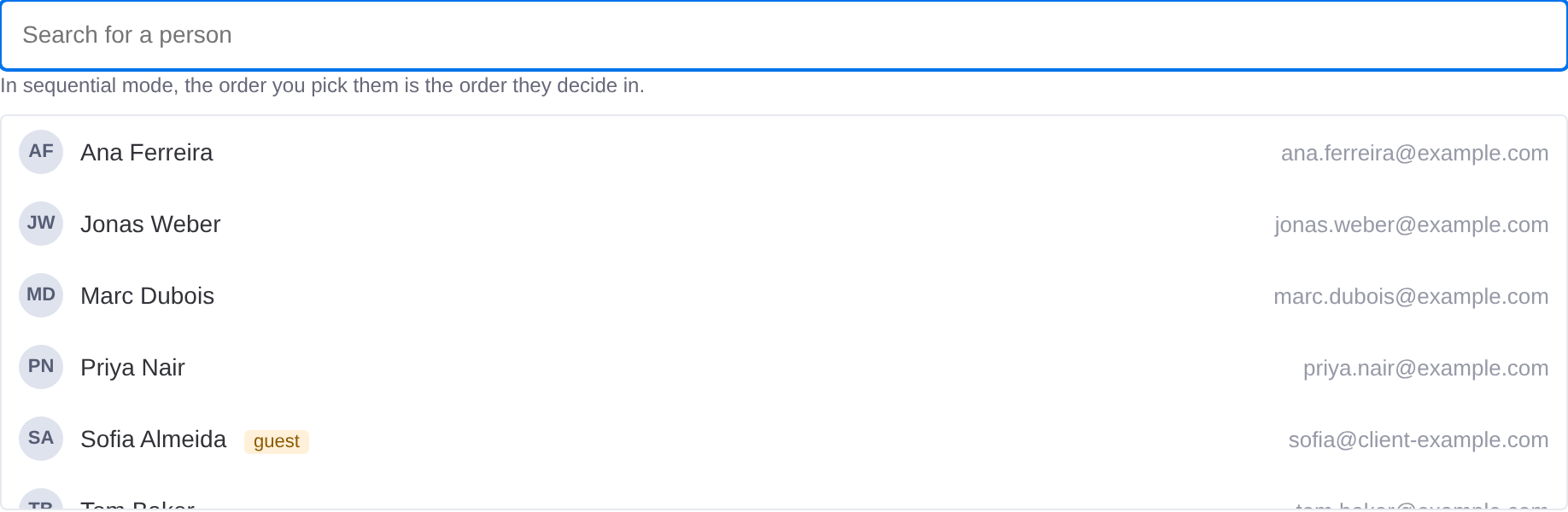
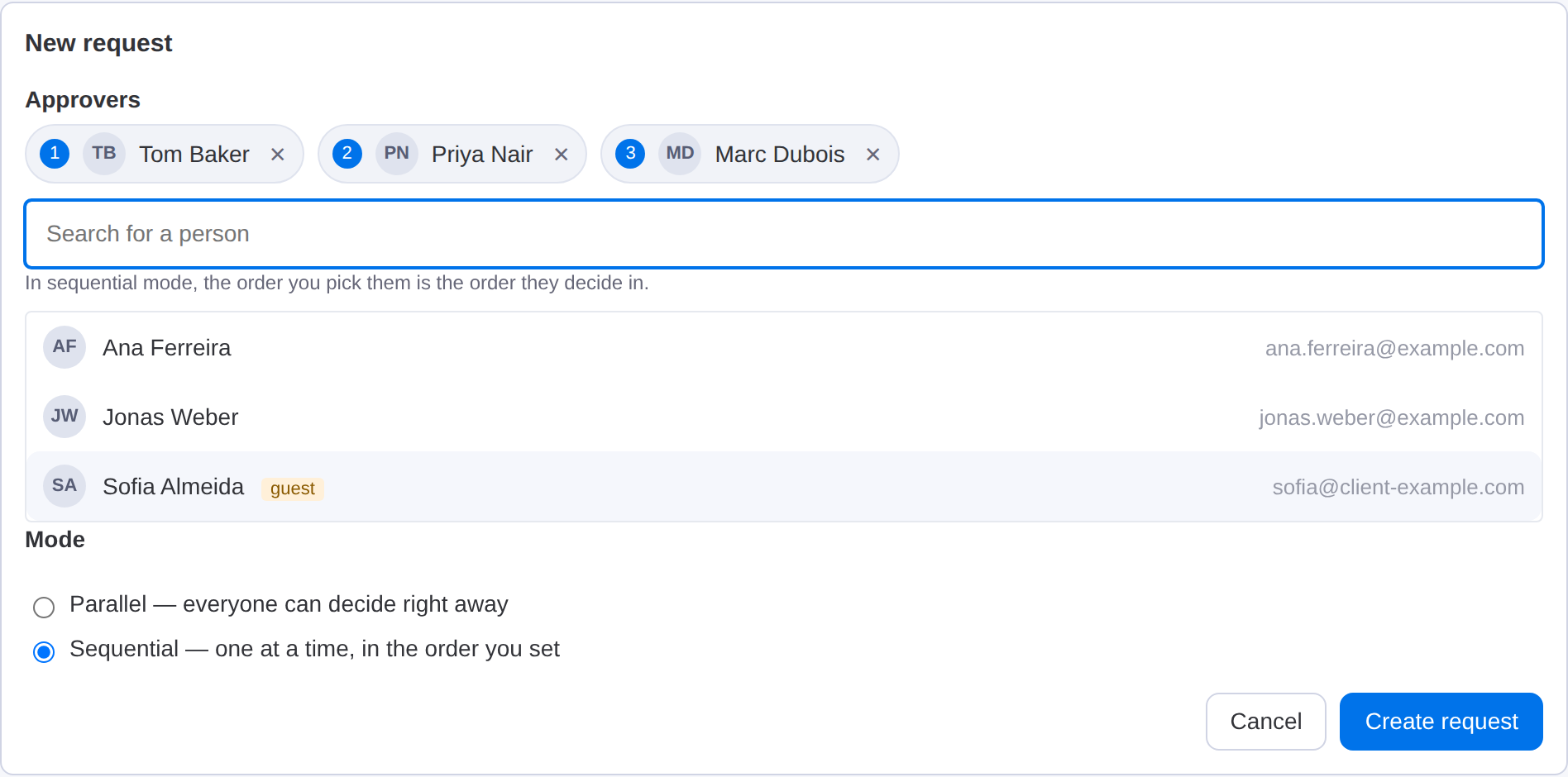
What it does. Approvals on monday.com usually end up buried in a comment thread. This app turns them into a tracked decision on the item itself: pick your approvers, choose whether they decide one at a time or all at once, and every approval or rejection is recorded where the work is.
The first time you open the view you will see a band saying "This account is not connected to monday yet", with a Connect to monday button.
Click it. A monday.com consent screen opens in a new tab, listing what the app is allowed to do. Approve it: the tab shows "Done", and you can close it. Back on the item, the band goes away by itself within a few seconds.
Until you do this the app cannot check who is allowed to see each board, so it keeps approval requests locked: you cannot open, read or decide them. It only has to be done once per account, by one person.
If a request has a deadline and nobody has decided by then, the app sends two different notifications, once:
Overdue requests are checked every hour, so a notification can arrive up to an hour after the deadline. Each request is chased once, not every hour: a reminder repeated to someone already ignoring it is noise. On the card the deadline turns amber and reads Overdue.
The deadline is optional. If you do not want reminders on a request, leave it empty.
Each approver gets a monday.com notification with the item's name and a link. Opening the item and the Approvals view shows Approve and Reject buttons — but only to the people whose turn it is. Everyone else sees the current state and who is holding it up.
Above the buttons there is an optional Note. What you write there is saved with your decision and shown on the card next to your name.
When the request closes, the app writes an update on the item, for example "Everyone approved “Invoice #204” — 3/3 approvals."
| Mark | Meaning |
|---|---|
› | Waiting on this person right now |
· | In the queue, not their turn yet |
✓ | Approved |
✕ | Rejected |

A single rejection closes the whole request: nobody after that is asked.
The newest request is always at the top. On an item with many requests the view shows the five most recent, and a button under the list (Show 7 older requests) brings back the rest. Nothing is deleted.
Under the requests, Who gets notified sets what the app says, and to whom, for every request on that board. Each switch describes itself: tell an approver when it is their turn, tell the person who asked each time someone decides, tell them when the request is finished, tell every approver when it is finished, and post the outcome as an update on the item. A change is saved the moment you click it. The section appears once the account is connected (step 2).
The approval lives inside this view, but you can have it mirrored into a status column so the board shows it from a distance. Pick the column under the title: Show the result in this board column. The app then writes Pending approval, Approved or Rejected into it, and creates those labels if the column does not have them yet.

Three things worth knowing before you turn it on.
Cancelling a request empties the cell again: the app wrote it, the app clears it.
The account is not connected yet. Go back to step 2.
Same cause. Without the connection the app cannot write into monday.com, so notifications are skipped rather than failing loudly.
Reload the page with Ctrl+Shift+R (Cmd+Shift+R on a Mac). Browsers cache the app's files aggressively.
The app's server sleeps when it is idle and takes a moment to wake up. It only affects the first request after a long pause.
Write to [email protected] and say which board and item you were on. Replies usually arrive within one working day.